Verify Signatures
FMD cryptographically signs its releases. This ensures integrity and authenticity of the compiled artifacts.
As a one-time setup, you need to obtain an authentic copy of the public keys corresponding to FMD's private signing keys. The public keys are listed at the bottom of this page.
On a high level, the steps to verify an APK are as follows (the process is similar for other artifacts):
- Download the attestation file and the certificate file for the
fmd-android-rsakey below. Note down the published public key fingerprint. - Verify the attestation. The public key fingerprint should match.
- Verify the APK. The public key fingerprint should match.
Verify APK
You can verify an APK by running:
sudo apt install --no-install-recommends apksigner

apksigner verify --verbose --print-certs /path/to/app.apk
This will print the fingerprints of the certificate and the fingerprints of the public key that were used to verify the APK signature.
You only need to verify the APK signature once. Usually, you would do this before the first install. Once an app is installed, Android enforces that all updates must be signed by the same key that was used to sign the original APK.
Verify F-Droid repository
You can display the certificate fingerprint of a repository inside the F-Droid client app.
Screenshot
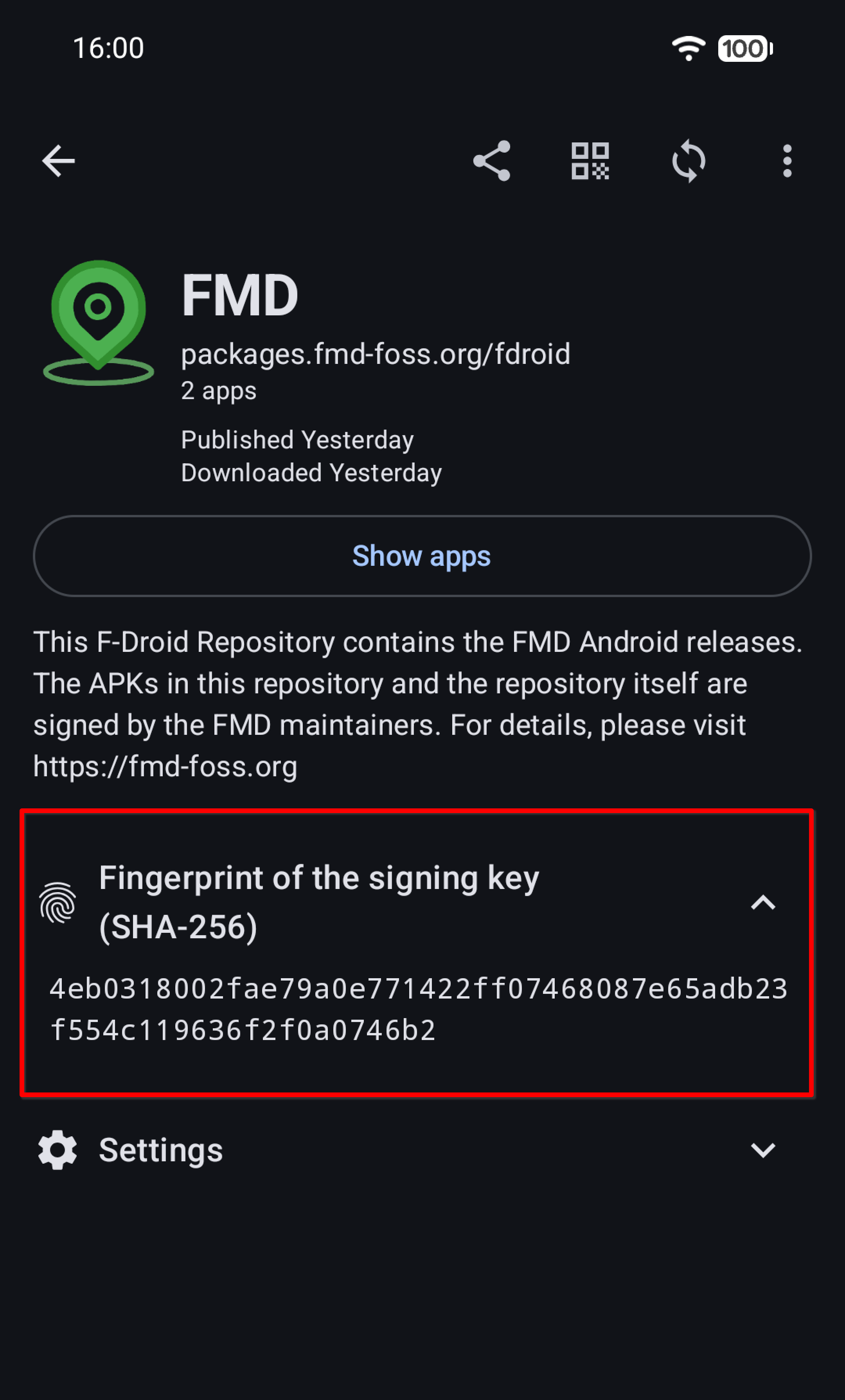
Additionally, you can include the certificate fingerprint when sharing URLs to the repository:
Verify FMD Server
Use the verify_server.sh script:
./verify_server.sh server.zip server.pub.der server.zip.sig
Verify attestations
For all of the signing keys, you can verify their attestations. These prove that the keys were generated inside a Nitrokey HSM. For instructions, please see the attestation guide.
Helper commands
Note the difference between a certificate fingerprint and a public key fingerprint. The first is a hash of the entire self-signed X.509 certificate, the second is a hash of only the public key.
Android and F-Droid tooling often shows the certificate fingerprint. To link the certificate to a public key, use these helper commands.
To get the SHA-256 fingerprint of a certificate from a certificate file:
openssl x509 -in fmd-android-rsa.crt.pem -noout -sha256 -fingerprint | tr -d ':' | tr '[:upper:]' '[:lower:]'
To get the SHA-256 fingerprint of a public key from a certificate file:
openssl x509 -in fmd-android-rsa.crt.pem -noout -pubkey | openssl pkey -pubin -outform DER | openssl dgst -sha256
To get the SHA-256 fingerprint of a public key from a public key file:
openssl pkey -in fmd-android-rsa.pub.der -pubin -outform DER | openssl dgst -sha256
By computing the fingerprints from the files and comparing them against the values published below, you can verify that you have downloaded the correct public key/certificate files.
Get the files and fingerprints
This section lists all files and fingerprints for the public keys, certificates, and attestations that you need to verify the signatures of FMD release artifacts.
FMD Android (F-Droid)
Historically, the FMD Android APKs that are published on F-Droid have been signed by F-Droid. These signing keys are controlled and managed by F-Droid. We list their fingerprints here to provide an independent source.
- FMD Android:
- Type: RSA-2048
- Certificate SHA-256:
87a6c136f5499db255c93f4d384cb1a5d314f6908f2bf197e0ec07ed58bb5872 - Public Key SHA-256:
0a1d13453bce15c74b6817b5ad13c5b02ce3025f25753c07d39cbbf4b84f5364 - Artifacts: https://f-droid.org/packages/de.nulide.findmydevice
- FMD Android edge:
- Type: RSA-2048
- Certificate SHA-256:
4ee65f838f4db4153a4ce934470222035f05c5b97a30133ab5c0a999e2747da4 - Public Key SHA-256:
c05f9873d9c7451897e583e499a31a85f3aa33abaa635d7ff1b52ff7c72b9652 - Artifacts: https://f-droid.org/packages/de.nulide.findmydevice.edge
FMD Android
FMD signs FMD Android APKs and publishes them in an F-Droid-compatible repository (see below). These APKs use the following signing key. The same key is used for both FMD and FMD edge.
fmd-android-rsa- Type: RSA-4096
- Certificate SHA-256:
94f404bc4b9dcd2c7df4ce42000e8ecdd4cb6490e04ef7d76ca9967e6182ee71 - Public Key SHA-256:
e5dac849ee2c53a37229df07aa98b48bb0246726edc8c40c3fba86a604d99673 - Certificate: fmd-android-rsa.crt.pem
- Public key: fmd-android-rsa.pub.der
- Attestation: attestation_fmd-android-rsa.json
On our test devices with GrapheneOS and LineageOS, APKs signed with an EC key installed just fine. However, we decided to use RSA anyway, since this is what all Android apps use (that we have seen in the wild), and we wanted to avoid running into potential incompatibilities with obscure Android ROMs.
FMD F-Droid Repository
The F-Droid-compatible repository that is hosted at https://packages.fmd-foss.org/fdroid/repo/ uses the following signing key.
fmd-fdroid-ec- Type: EC:secp521r1
- Certificate SHA-256:
4eb0318002fae79a0e771422ff07468087e65adb23f554c119636f2f0a0746b2 - Public Key SHA-256:
716cdb48a07aefe819d6461fd2afcb65cb7d0d93744a96bd2b2700c65aac175a - Certificate: fmd-fdroid-ec.crt.pem
- Public key: fmd-fdroid-ec.pub.der
- Attestation: attestation_fmd-fdroid-ec.json
The Nitrokey HSM does not support Ed25519.
FMD Server
The FMD Server release ZIPs published at https://packages.fmd-foss.org/server/ use the following signing key.
fmd-server-ec- Type: EC:secp521r1
- Public Key SHA-256:
3ca11d8e80092f9734e1f3a6a3434cd6ba5b7207af8e636200132e762e4fc408 - Public key: fmd-server-ec.pub.der
- Attestation: attestation_fmd-server-ec.json
The APKs and the F-Droid repository use Java Keystores for signing, and that ecosystem requires certificates.
(Usually, these certificates are self-signed.)
The FMD Server ZIPs are signed directly with openssl and pkcs11-tool, that is why a public key is enough.